How to Use the Slide Planner (Beta)
This is your quick way to turn ideas into a clear and coherent Slide Planner. The tool helps you create a slide structure and fill it with text in just minutes. This feature is currently in beta. For now, you can create a Slide Planner that can be exported and export it to Gamma.app for the final design and delivery.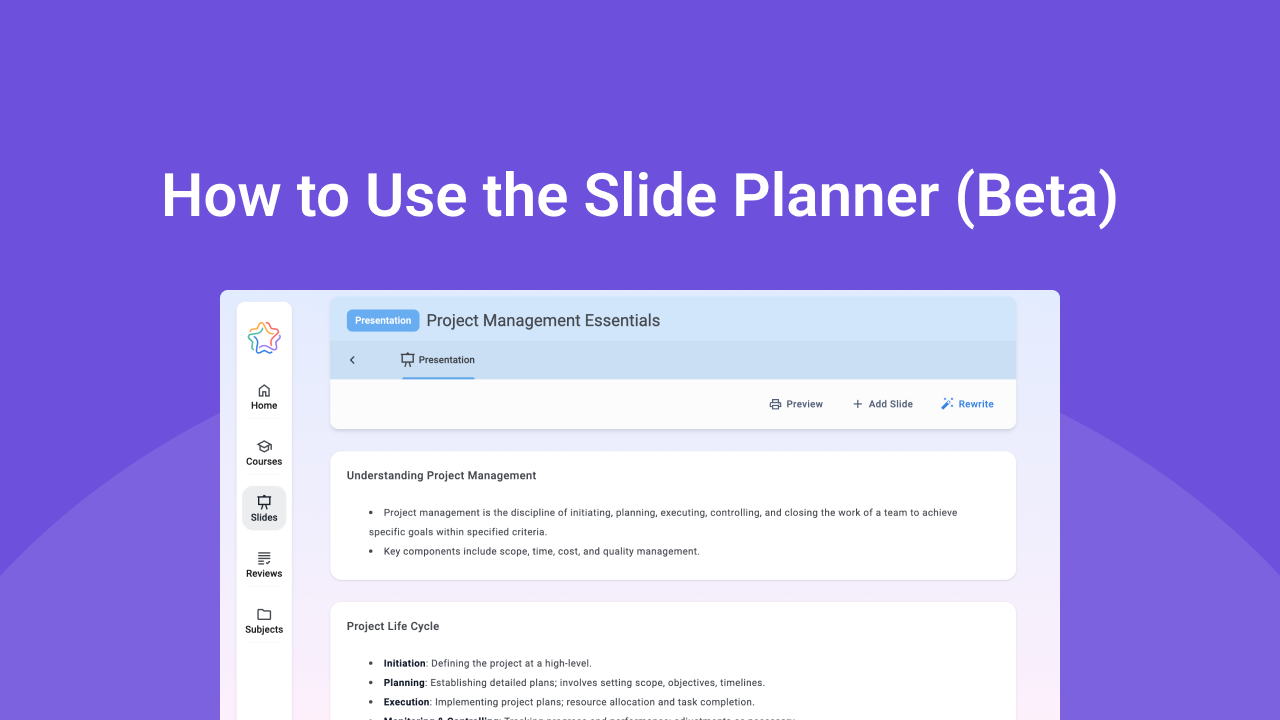
Choose how you want to create a Slide Planner:
Create the Slide Planner with AI assistant:
Click the Add Presentation button to open the settings screen.
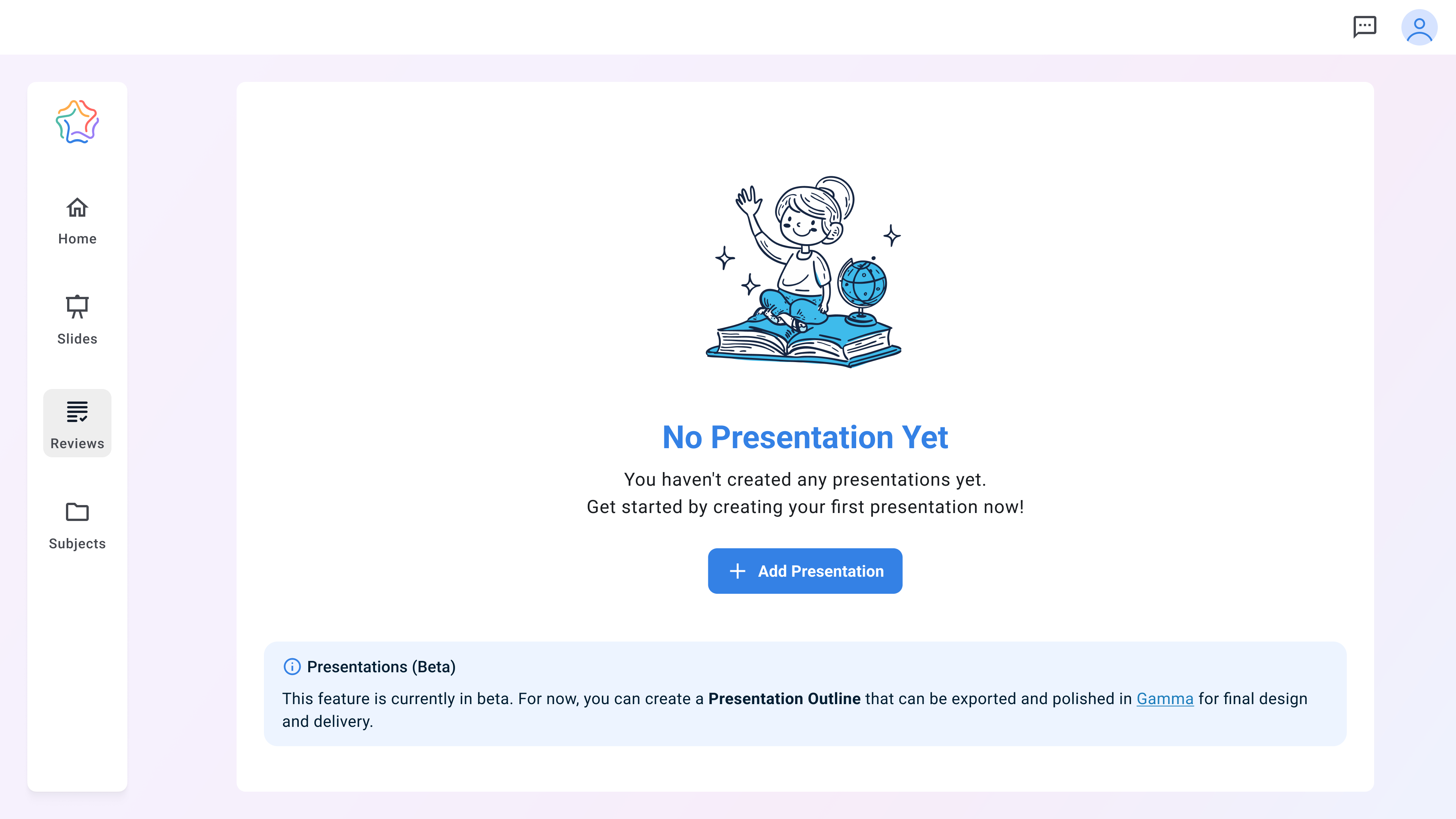
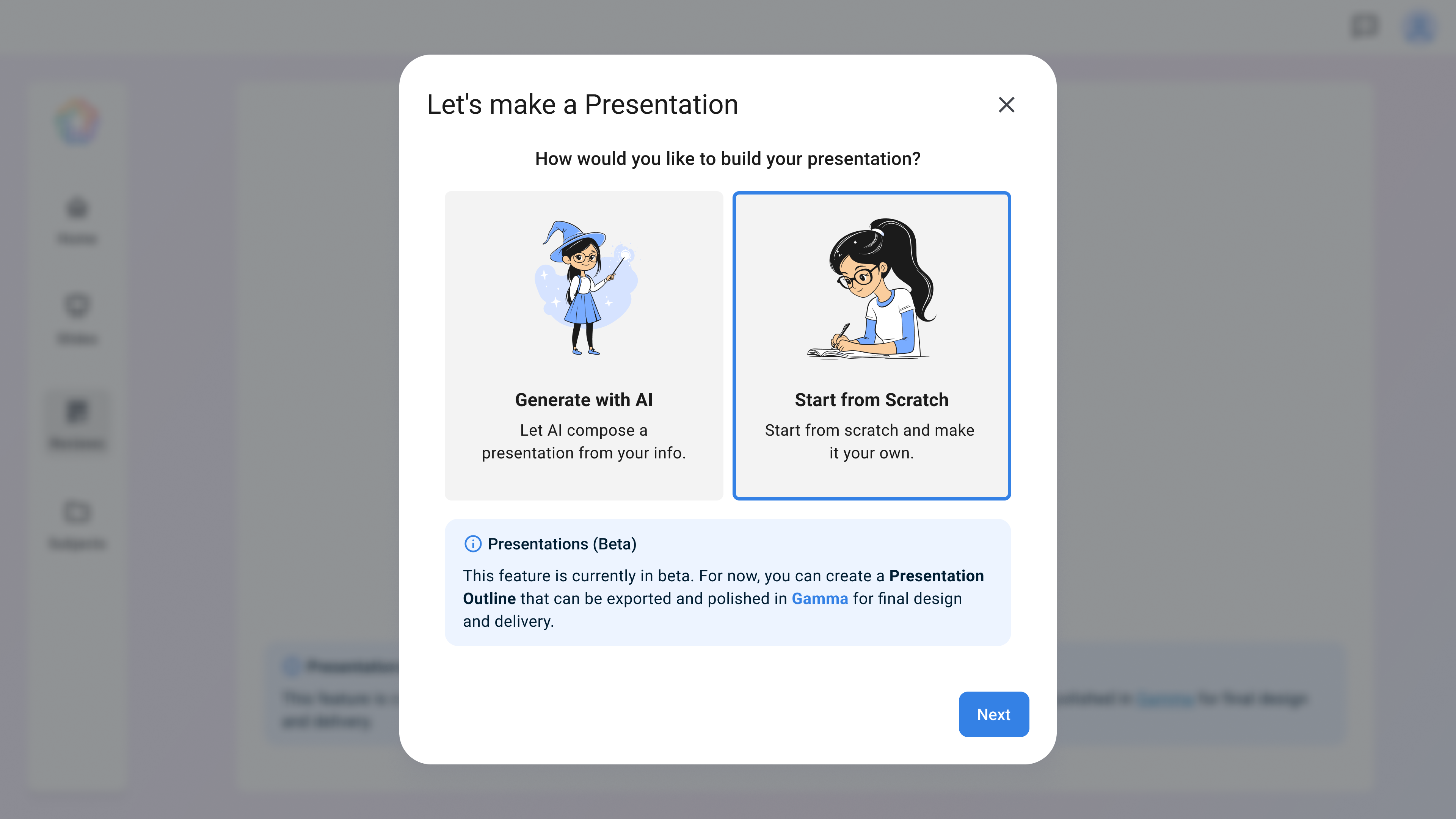
In the modal window, select Generate With AI.
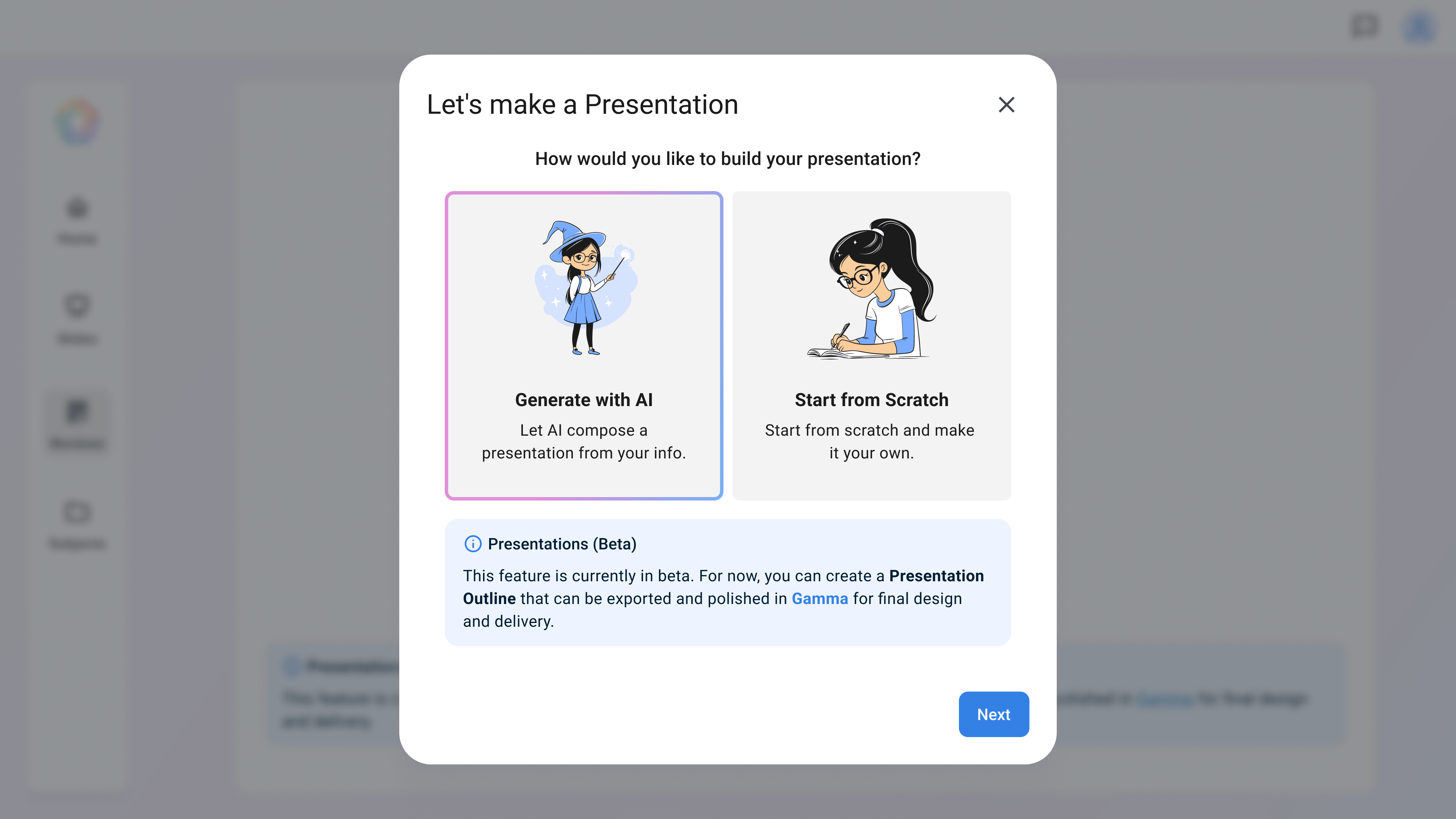
Let's make a presentation:
In the settings, specify the language and the number of slides. If needed, add any materials you want considered when generating the presentation.
Describe how you envision your presentation in the AI chat assistant and click Compose. Here are some points you may want to include:
- Topic: what the presentation is about
- Goal / Outcome: what the audience should learn or understand
- Audience: who the listeners are (age, knowledge level, role)
- Delivery style: academic, simple, motivational, business-like, etc
- Focus: key accents such as concepts, examples, cases, or discussion questions
- Expected outcome: what should appear at the end (takeaways, review questions, assignments)
❗ Example: Create a presentation on the topic of critical thinking in everyday life. The goal is to teach students to recognize media manipulation and formulate their own opinions. The audience is first-year students between the ages of 18 and 20 with no prior knowledge of the subject. Use a simple, conversational delivery style with vivid examples from social media and the news. Include two discussion questions for the audience and one short, practical case for analysis
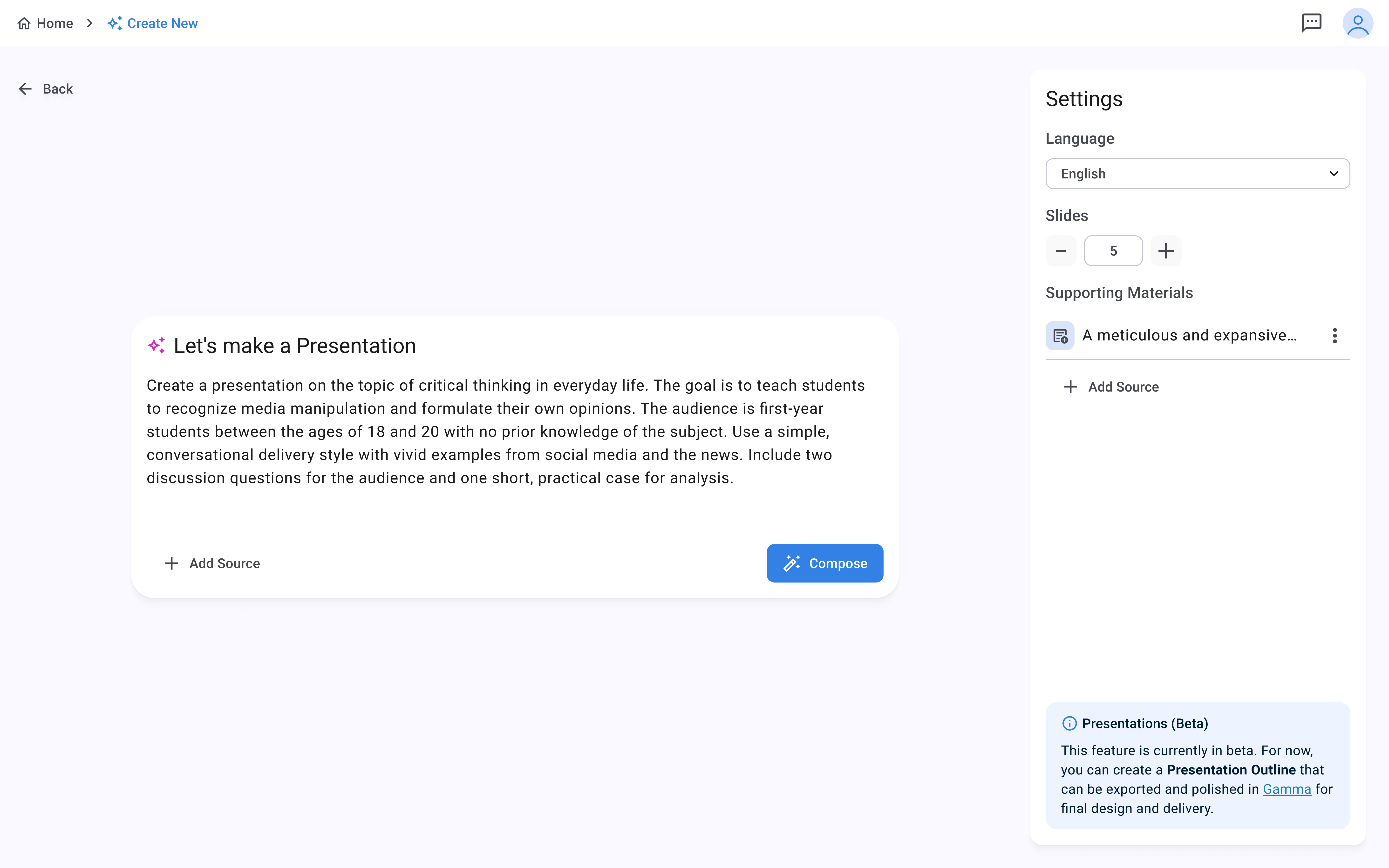
Check the result:
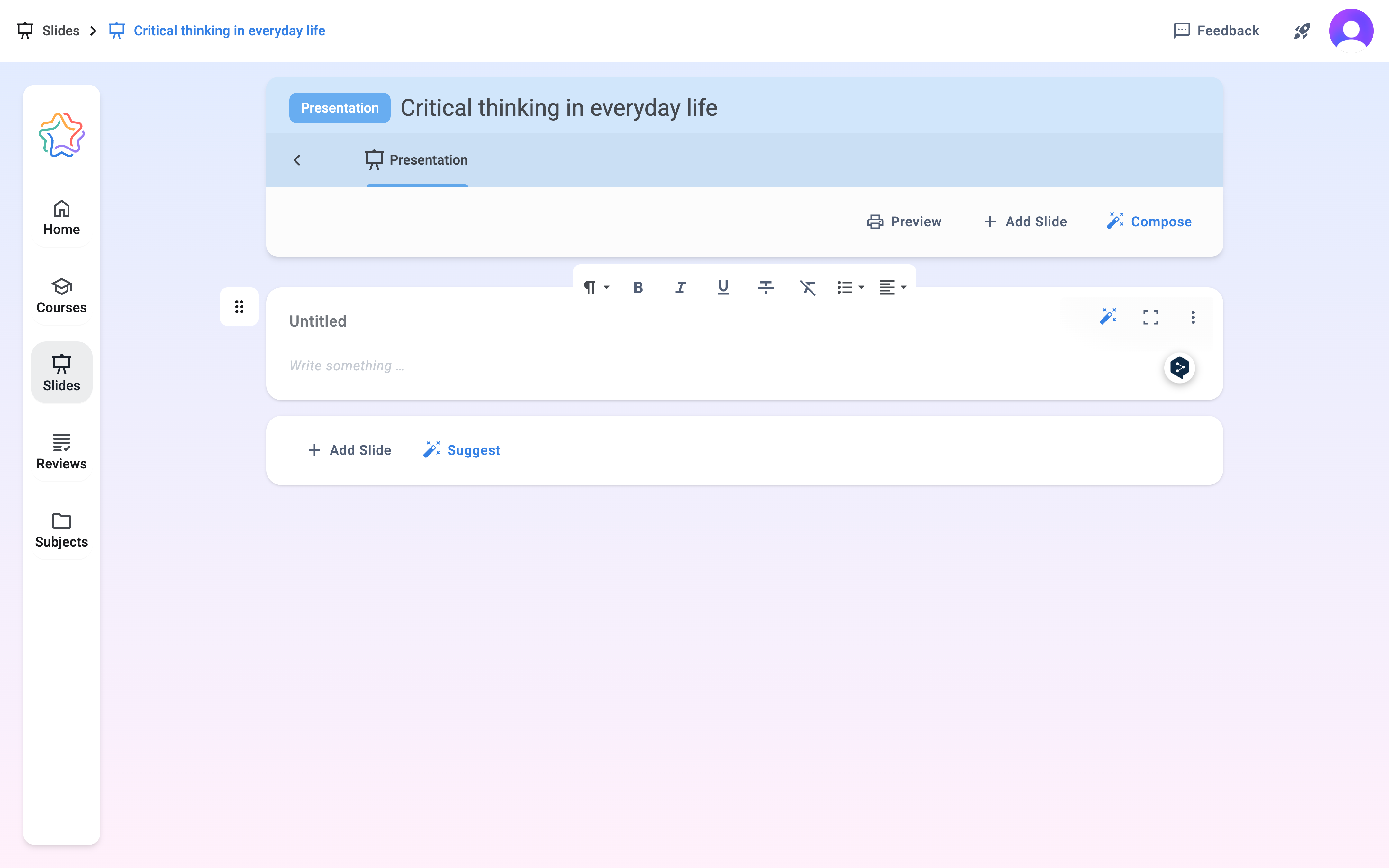
Review the outcome of the completed presentation and take advantage of the additional options. Each slide includes a built-in editor that allows you to adjust the text style and formatting directly on the slide.
What you can do next:
- Edit slides manually by adjusting text styles or adding information
- Reorder slides by dragging them by the number
- You can always turn on our AI assistant to help refine the slide
❗ AI assistant: enabling the AI assistant by clicking the magic wand allows you to create and edit multiple versions of a slide, switch between them, and use shortcuts for quick editing.
Export and design in Gamma.app
Export the finished presentation plan as a Word document.
How to upload to Gamma.app :
- Go to the Gamma.app
- Click Create new
- Select Import file or URL
- Select Upload a file, then upload the file exported from EdSyl.ai and click Continue
- In the Prompt Editor, switch to the Card-by-card view
- Click the Scissors button to split your file into slides, then click Generate